
Mounting dd images
This page has been made public as an example of our reference material for advanced users.
overview
dd (or other utilities) may be used to make an image (or verbatim or sparse) copy of a disk partition(s) or section containing file systems.
If the image contains only one file-system, it suffices to mount it as a loop device. A bit more work is required if the image has partitions.
The traditional and harder way to examine the partitioning is to use fdisk -l on the (loop) mounted image to examine how it has been partitioned.
- probe the image
fdisk -l lenovo.img
NR     START       END   SECTORS   SIZE NAME UUID
 1      2048    411647    409600   200M
 2    411648 884611071 884199424 421.6G
 3 884611072 946051071  61440000  29.3G
 4 946051072 976361471  30310400  14.5G
- make the loopback (note sector 411648 (with sector size 512) is offset 210,763,776 bytes):
losetup -v -f -o 210763776 --sizelimit 452710104576 lenovo.img
- find the loopback device
losetup -a
/dev/loop: [] (lenovo.img), offset 210763776, sizelimit 4527104576
- identify the file system
blkid /dev/loop
using partx
If you don't desire to count sectors and work out offsets and extents partx may be your friend.
- make the loopback device for the image
losetup -v -f lenovo.img
- find the loop device id
losetup -a
/dev/loop0: [2145]:12 lenovo.img
- now probe
partx --show /dev/loop0
- To add all partitions as block devices:
partx -v --add /dev/loop0
/dev/loop0: partition table type 'dos' detected
/dev/loop0: partition #1 added
/dev/loop0: partition #2 added
/dev/loop0: partition #3 added
/dev/loop0: partition #4 added
- Now probe to find the device for your partition
blkid /dev/loop0*
/dev/loop0p1: LABEL="SYSTEM_DRV" UUID="0840B6DE40B6D224" TYPE="ntfs"
/dev/loop0p2: LABEL="Windows7_OS" UUID="7C64B5C764B58504" TYPE="ntfs"
/dev/loop0p3: LABEL="LENOVO" UUID="7652C00A52BFCCDD" TYPE="ntfs"
/dev/loop0p4: LABEL="LENOVO_PART" UUID="983479C03479A244" TYPE="ntfs"
- mount the specified partition
mount -o ro /dev/loop0 /mnt/p2
disk structure


sdd                 8:48   0 931.5G  0 disk
├─sdd1              8:49   0   260M  0 part
├─sdd2              8:50   0    16M  0 part
├─sdd3              8:51   0 911.8G  0 part
├─sdd4              8:52   0   951M  0 part
└─sdd5              8:53   0  18.5G  0 part
The above disk was partitioned GPT for windows with the following properties:
# sfdisk --dump /dev/sdd
label: gpt
label-id: C45DEBEF-CEDB-4B8A-8218-3A2515E214A2
device: /dev/sdd
unit: sectors
first-lba: 34
last-lba: 1953525134
sector-size: 512

/dev/sdd1 : start=        2048, size=      532480, type=C12A7328-F81F-11D2-BA4B-00A0C93EC93B, uuid=CEEB4368-5873-47A2-801F-2966FAF2780E, name="EFI system partition", attrs="GUID:63"
/dev/sdd2 : start=      534528, size=       32768, type=E3C9E316-0B5C-4DB8-817D-F92DF00215AE, uuid=2DA6439D-C90D-4B46-8482-A27B88BEFED1, name="Microsoft reserved partition", attrs="GUID:63"
/dev/sdd3 : start=      567296, size=  1912271476, type=EBD0A0A2-B9E5-4433-87C0-68B6B72699C7, uuid=82E5BF55-6FF9-4CF5-9B12-18408C074CF8, name="Basic data partition"
/dev/sdd4 : start=  1912840192, size=     1947648, type=DE94BBA4-06D1-4D40-A16A-BFD50179D6AC, uuid=F4098FE5-CC0C-41FE-8216-F294264E7421, attrs="RequiredPartition GUID:63"
/dev/sdd5 : start=  1914787840, size=    38725632, type=EBD0A0A2-B9E5-4433-87C0-68B6B72699C7, uuid=435EF607-E6A6-474A-8C00-939F89D62189, name="Basic data partition", attrs="RequiredPartition"
- or via fdisk -l
# fdisk -l /dev/sdd
Disk /dev/sdd: 931.51 GiB, 1000204886016 bytes, 1953525168 sectors
Disk model: SPCX-60KHST0
Units: sectors of 1 * 512 = 512 bytes
Sector size (logical/physical): 512 bytes / 512 bytes
I/O size (minimum/optimal): 512 bytes / 512 bytes
Disklabel type: gpt
Disk identifier: C45DEBEF-CEDB-4B8A-8218-3A2515E214A2

Device          Start        End    Sectors   Size Type
/dev/sdd1        2048     534527     532480   260M EFI System
/dev/sdd2      534528     567295      32768    16M Microsoft reserved
/dev/sdd3      567296 1912838771 1912271476 911.8G Microsoft basic data
/dev/sdd4  1912840192 1914787839    1947648   951M Windows recovery environment
/dev/sdd5  1914787840 1953513471   38725632  18.5G Microsoft basic data
partitions
You may backup partitions on their own and provided the disk is structured with a partition table you can restore to a partition. E.g. with /dev/sdd you can
dd if=/dev/sdd3 of=sdd3.img bs=4M status=progress conv=notrunc,noerror
to overwrite the partition, and
dd if=sdd3.img of=/dev/sdd3 bs=4M status-progress conv=notrunc,noerror
The first sector is reserved for the legacy MBR record. You may backup and restore the MBR. There are a few other offsets reserved for GPT, so most GPT partitioning start at offset (or after) 2048 to be safe.
MBR
The MBR is a legacy Partition system used to boot old systems. The MBR is stored in the first 448 bytes and is followed by a 64byte partition table. Most disk formats reserve the first sector for the MBR.
- save the MBR via
dd if=/dev/sdd count=1 of=sdd-mbr.img conv=notrunc
- restore the MBR via
dd if=sdd-mbr.img of=/dev/sdd count=1 conv=notrunc
You can write the saved partition to the correct offset with dd, however you must restore the partition table.
GPT
You can use sfdisk to backup all the GPT partition sectors (recommend before partitioning) via:
sfdisk --backup /dev/sdd -O backup
The default backup is in ~/sfdisk-<dev>-<offset>, the -O backup overides the default filename implementation for the paritition table backup files e.g. backup-<dev>-<offset> as below:
- ls -lrta
-rw-------  1 root root        16384 Feb 27 15:11 backup-sdd-0x00000400.bak
-rw-------  1 root root          512 Feb 27 15:11 backup-sdd-0x00000200.bak
-rw-------  1 root root          512 Feb 27 15:11 backup-sdd-0x00000000.bak
The GPT partition table entries can then be restored via:
dd if=backup-sdd-0x00000000.bak of=/dev/sda seek=0 bs=1 conv=notrunc
dd if=backup-sdd-0x00000200.bak of=/dev/sda seek=$((0x00000200)) bs=1 conv=notrunc
dd if=backup-sdd-0x00000400.bak of=/dev/sda seek=$((0x00000400)) bs=32 conv=notrunc
Note offset 0 obtains the MBR and partition table stored in the first sector.
Alternatively you can backup and restore the disk partition layout via --dump option to save a description of the device layout to a text file. The dump format is suitable for later sfdisk input. For example:
sfdisk --dump /dev/sda > sda.dump
This can later be restored by:
sfdisk /dev/sda < sda.dump
LVM
See LVM.
resize an image
See Resize_fs#Resize_an_image.
- You must downsize the fs before performing the dd copy
gparted /dev/mmcblk
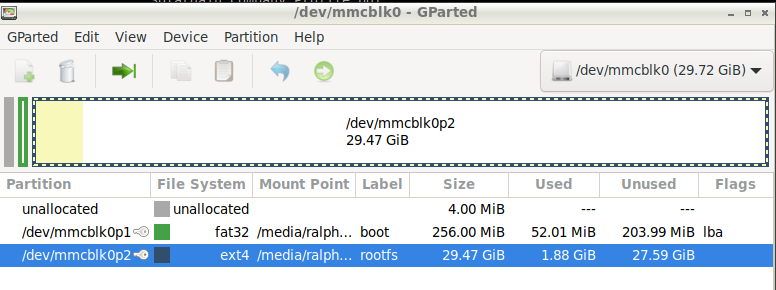

- resizing

- The result

- ext4 fs details

- copy the sdcard image (one sector more than the last sector) by specifying the number of sectors (in this case 272,630,272 bytes
dd of=wap-s.img bs=512 count=6501172 status=progress status=progress
manipulating the partition size
This example is manipulating the partition size of an image file which is a truncated copy of a 32GB sdcard that has two partitions p1 and p2 where p2 is the last partition and has a small 2.4 G byte ext4 filesystem within it which does not use the entire partition.
- Loop mount the image:
losetup -f wap-s.img
- Find the loop
losetup -a
- Now manipulate it
fdisk /dev/loopxxx
- Make a note of the partition table contents:
Command (m for help): p
Disk /dev/loop6: 3 GiB, 3221225472 bytes, 6291456 sectors
Units: sectors of 1 * 512 = 512 bytes
Sector size (logical/physical): 512 bytes / 512 bytes
I/O size (minimum/optimal): 512 bytes / 512 bytes
Disklabel type: dos
Disk identifier: 0x18b3f195

Device       Boot  Start      End  Sectors  Size Id Type
/dev/loop6p1        8192   532479   524288  256M  c W95 FAT32 (LBA)
/dev/loop6p2      532480 62333951 61801472 29.5G 83 Linux
Now since the image has been truncated you may notice that partition 2 size is outside the image, this needs to be fixed
- carefully delete the partition:
d 2
- make a replacement partition 2:
 n
partition: 2
start sector:    532480
end sector:     6291455
- do not delete the ext4 signature!
- now write the partition changes
w
- reprobe the partitions
partprobe /dev/loop6
- verify the partitioning
fdisk -l /dev/loop6
- print it
p
Disk /dev/loop6: 3 GiB, 3221225472 bytes, 6291456 sectors
Units: sectors of 1 * 512 = 512 bytes
Sector size (logical/physical): 512 bytes / 512 bytes
I/O size (minimum/optimal): 512 bytes / 512 bytes
Disklabel type: dos
Disk identifier: 0x7d3d8772

Device       Boot  Start     End Sectors  Size Id Type
/dev/loop6p1        8192  532479  524288  256M  c W95 FAT32 (LBA)
/dev/loop6p2      532480 6291455 5758976  2.7G 83 Linux
You may now write the "truncated" image to a new block device, such as an sdcard.
remove loop devices
You list loop devices via
losetup -a
You delete the device via
losetup -d /dev/loopXXX
Notes
- gparted will not work with a partition that has been sized outside the image, which is why I used fdisk
- I was unable to resize partitions using gparted on an /dev/mmcblk device
- I was unable to resize a file-system using gparted on a loop device
- I was able to resize an a correctly partitioned sdcard mounted via a USB card-carrier, but not via the /dev/mmcblk device